


Land Rover InControl® Apps™
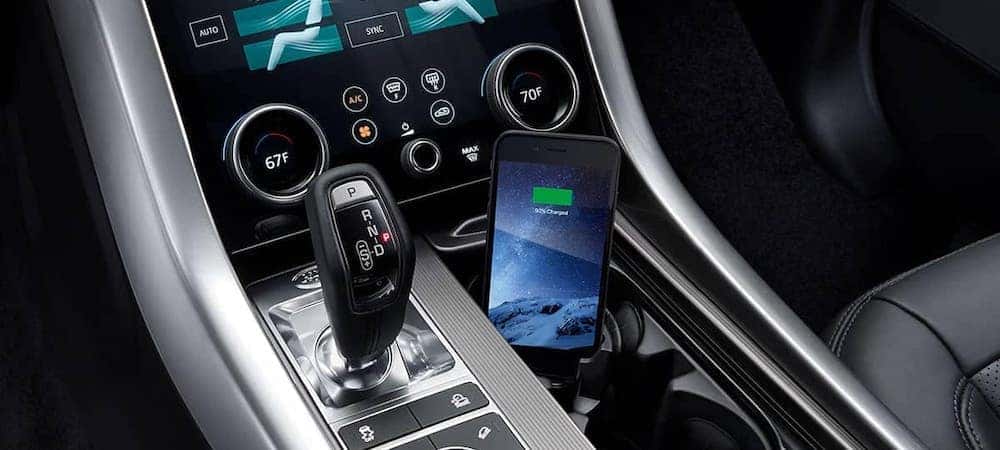
How Do I Set Up Land Rover InControl® Apps™️?
To install Land Rover InControl® Apps™️:
- Search either the Apple App Store or Google Play, depending on the phone you have, for Land Rover InControl® Apps™️
- Download the app, select “accept,” and install it.
- Confirm the installation was complete by checking for the Land Rover InControl® Apps™️ icon on your phone.
- Follow the Auto Quick Start Guide to complete the setup.
To connect your smartphone to your vehicle’s interface via InControl® Apps™️:
- With your Land Rover on, pair your smartphone with your vehicle’s Bluetooth to enable calls and streaming.
- Using the USB cord (not a charging-only cord) that came with your phone, plug your smartphone to the InControl® Apps™️ USB port.
- For iPhones, open the app.
- For Androids, select “Always Allow.”
- Leaving your phone unlocked, select InControl Apps on the Land Rover touchscreen.
- Select “View” to use apps without audio or select “View and Listen” to use apps with audio.
Each third-party app will be grayed out with a key symbol until that app is set up. The process for setting up each additional app is simple:
- Select the app you wish to set up on the vehicle’s touchscreen, read the instructions, then select “Start.”
- Approve the pop-up that appears on your smartphone.
- Press the home button on your vehicle’s touchscreen.
- Approve the second pop-up on your phone.
- Repeat for each new third-party app to unlock them on your Land Rover’s screen.
What Apps Can I Use with Land Rover InControl® Apps™️?
- Navigation and GPS Tracking: Sygic and Glympse
- Journey and Fuel Monitoring: Mileage Tracker Pro
- Points of Interest: Cityseeker, Eventseeker, Hotelseeker, and Parkopedia
- News & Entertainment: Newsbeat, Rivet Radio, Radio, Audiobooks, and Stitcher
- Conference Calls and Online Meetings: MobileDay®
What is the Land Rover InControl® Remote™️ App?
Interact with your Land Rover via this smartphone app. Operate the remote start, lock/unlock the doors, and climate control, or use this app for tracking your Land Rover, getting maintenance alerts, checking fuel levels, and more.
Control the Roads with Land Rover Chandler
Try out new Land Rover technologies when you visit Land Rover Chandler near Tempe to test drive one of our models. Schedule a test drive around Phoenix today or contact us with any questions about our models like the Discovery or Range Rover Evoque.
Learn More at Land Rover Chandler
Land Rover vs. Range Rover: What’s the Difference in Chandler, AZ
What’s the difference between “Land Rover” and “Range Rover”? Land Rover is a brand, and the Range Rover is a specific Land Rover SUV. There is a further distinction between the specific Range Rover model and the Range Rover lineup (also known as the “Range Rover family”). The Range Rover lineup consists of four models:…
2022 Land Rover Range Rover Configurations
Once you’ve spent time exploring the 2022 Range Rover trim levels, we think you’ll have a very difficult time settling for any alternative on the market today. After all, what could be more appealing than a high-end luxury SUV with a spacious, lushly appointed interior and legendary off-road capabilities? This is one model that…
How Much Does a New Range Rover Cost in Chandler, AZ?
How much you pay for your new Land Rover depends on which trim you ultimately choose. The Range Rover price list starts at around $43,300 MSRP for the base model of the new Range Rover Evoque, and goes up to $211,000 MSRP for the highest Land Rover Range Rover trim. When you pay a higher…
0 comment(s) so far on Land Rover InControl® Apps™